

Appeals
Manage user suspension appeals
Insion provides an appeals system where suspended users can request reinstatement. Review and manage these appeals from your dashboard.
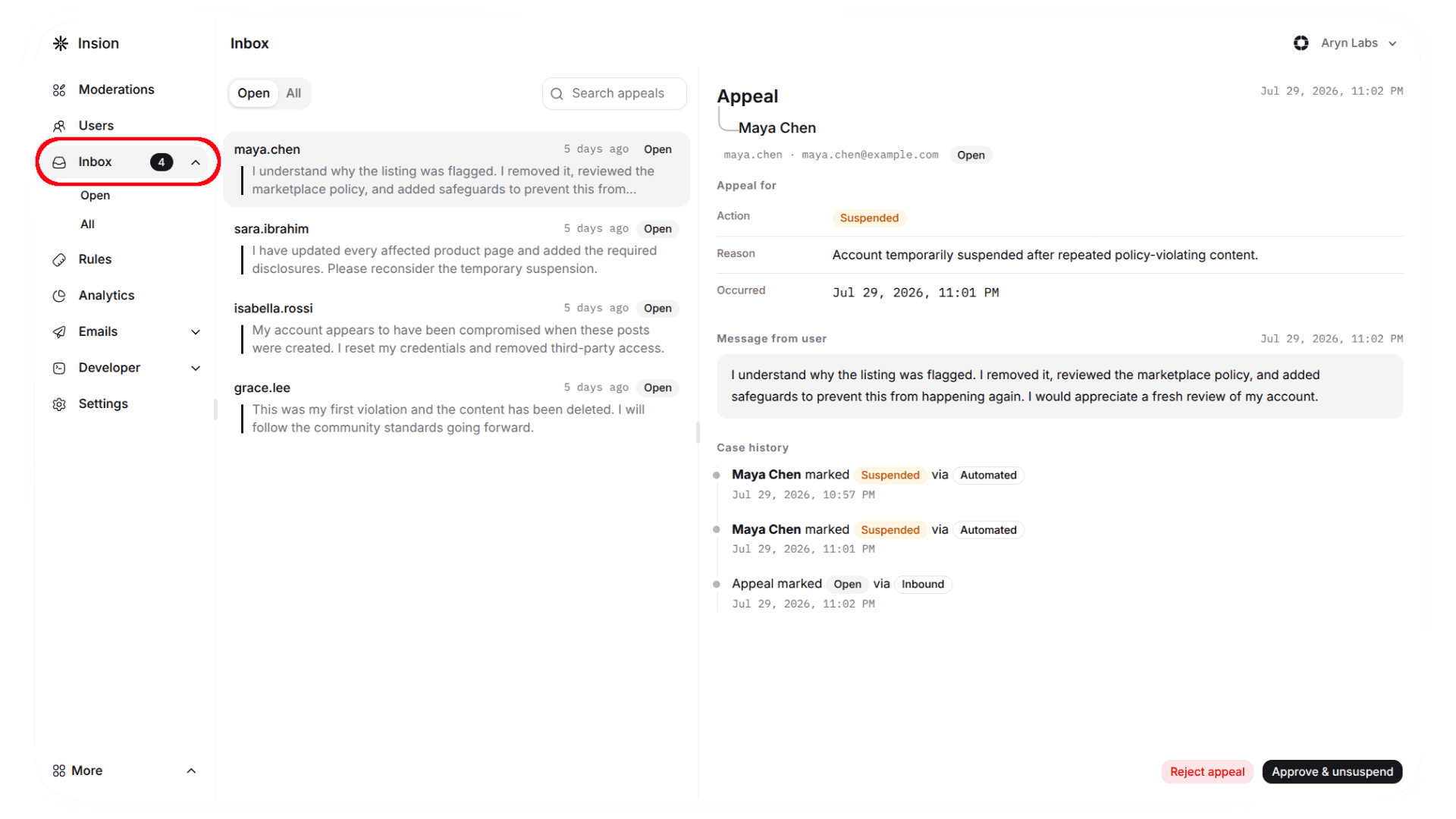
Appeals dashboard
Navigate to Inbox to see pending appeals. Each appeal shows:
- User's email
- Appeal submission time
- Related flagged content
- Appeal message
Appeal states
| State | Description |
|---|---|
| Open | New appeal awaiting review |
| Rejected | Appeal denied, user remains suspended |
| Approved | Appeal accepted, user reinstated |
Review process
- Select an appeal from the inbox
- Review the flagged content and user's message
- Choose an action:
- Unsuspend: Approve appeal and reinstate user
- Reject: Deny appeal and maintain suspension
Approving an appeal follows the normal reinstatement and email lifecycle. Rejection keeps the user suspended and sends no email.
Insa
Insa automatically reviews new appeals by looking at the original suspension, the user's appeal, supporting information, and the moderation rules involved.
It can also review suspensions made manually. If Insa finds that the suspension was incorrect, it approves the appeal and restores the user's access through the normal reinstatement process. Otherwise, the appeal is rejected and the suspension remains in place.
Need help? Contact our support team.
How is this guide?